Create SSIS Project
First we need to create an
SSIS Project before starting with
SSIS File Operations, you can create a SSIS Project
. Let’s say we created an SSIS project as
FileOperations.
Copy File:
We
can copy file from one place to another with the help of SSIS. We will
look into the whole process of copy file from one place to another in
this section, for this you need a New Package. Now we have a SSIS project named
FIleOperations, it is the time to create a package in our SSIS project. Add a new package and name it as
CopyFile.
Adding File System Task in Your Package
Now we have a package and it is time to add
File System Task to your package, to add File System Task control to the package go to
control flow times in toolbox and double click on File System Tasks or
drag and drop it in your package(See the image below)
.
 Configuring File System Task
Now we have
File System Task control added to your package and we can configure it. To configure right click on the control and choose edit(See the image below).

After that you will be navigated to a new window named
File System Task Editor in which you have to configure the
File System Task(See the image below).

The options on File system task editor are as below.
- IsDestinationPathVariable : Destination path is stored as variable or not.
- DestinationConnection : File Connection or vairable.
- OverwriteDestination : Overwrite if file exists with same name. True/False
- Name : name you want to give.
- Description : Little description
- Operation : Choose copy file.
- IsSourcePathVariable : Source path is stored as variable or not.
- SourceConnection : File Connetion or variable.
Here we have to choose operation as
Copy File choose
OverwriteDestination as True and IsDestinationPathVariable and IsSourcePathVariable as False. Now we have to configure Source and destination connections.
Configuring Source and Destination Connections
Now we have to configure source and destination connections.
Source Connection : In
File System Task Editor navigate to
SourceConnection Tab and choose
New Connection(See the image below).

Now you will be navigated to new window named
File Connection Manager Editor where you have to configure your source connection. Choose
Existing FIle as
Usage Type and provide fully qualified path for file which you want to copy to other location(See the image below).
 Destination Connection :
 Once you done with your
SourceConnection you have to configure Destination Connection. Go to
DestinationConnection tab and choose
New Connection(See the image below).

Now you will be navigated to new window named
File Connection Manager Editor where you have to configure your destination connection(See the image below).

Here we also have to provide
Usage Type & Folder as in Usage Type we choose
Existing Folder so we have to provide the destination folder where we want to have a copy of file.
Now you done with both Source and Destination connection and your final
File System Task Editor looks like this(See the image below).

Click
OK and you are done with your
Copy File Task. Save it and execute package as we did in
previous post and this will copy specific file from one place to another.
Rename File:
You done with Copy File, we will see the
Rename File operation next. This operation will rename any file to the another name you want, for this we need to create a package named
Rename. Once you have package added to your project open it and drag and drop
File System Task control
to your package as we did earlier in this post. Now we will configure
that file system task to rename files. For this you have to right click
on the package and choose
Edit as we did earlier in this post. This will open up
File System Task Editor, we have to configure that editor to rename files(See the image below).
We will choose Operation as
Rename File(See the image below).

Now we have to configure
Source and Destination Connection for
Rename File System Task.
Configure Source and Destination Connection :
Source Connection : In
File System Task Editor navigate to
SourceConnection Tab and choose
New Connection(See the image below).

Now you will be navigated to a new window named
File Connection Manager Editor and here you have to configure your
SourceConnection choose
Existing File as
Usage Type and provide
Fully Qualified Path in
File(See the image below).

click
Ok and your are done with your
SourceConnection.
Destination Connection : Once you are done with your
SourceConnection you have to configure Destination Connection where you want your renamed file, for this navigate to
DestinationConnection Tab and choose
New Connection(See the image below).

Now you will be navigated to new window named
File Connection Manager Editor and here you have to configure your
DestinationConnection choose
Create File as
Usage Type and provide
Fully Qualified Path in
File(See the image below).

Click
Ok and you are done with your
DestinationConnection.
Now you will be navigated back to
File System Task Editor here click ok and you are done with your
Rename File Task. you will get new file with name
Renamed.txt at your destination path.
Move File :
In
this Move File Task we will see how to move files from one location to
another location. For this we have to add a package name
Move in our project and add
File System Task Control to your package by Drag & Drop from
ToolBox. Once you have File System Task added to your project you have to configure this to move file by
right click and choose edit on File System Task as we did earlier in this post(See the image below).

Now after this we need to configure
Source and Destination Connection as we did earlier in this post.
Configure Source and Destination Connection :
Source Connection : In
File System Task Editor navigate to
SourceConnection Tab and choose
New Connection(See the image below).

Now you will be navigated to a new window named
File Connection Manager Editor and here you have to configure your
SourceConnection choose
Existing File as
Usage Type and provide
Fully Qualified Path in
File(See the image below).

click
Ok and your are done with your
SourceConnection.
Destination Connection : Once you are done with your
SourceConnection you have to configure
Destination Connection where you want to move file, for this navigate to
DestinationConnection Tab and choose
New Connection(See the image below).

Now you will be navigated to new window named
File Connection Manager Editor and here you have to configure your
DestinationConnection choose
Existing Folder as
Usage Type and provide
Folder Path in
File(See the image below).

Click
Ok and you are done with your
DestinationConnection.
Now you will be navigated back to
File System Task Editor here click ok and you are done with your
Move File Task. you will get a new file at
DestinationConnection and deleted
from SourceConnection.
Delete File:
Delete File Task is used to delete specific file from the specific location. For this we need to create a new package by name
delete in our sample project and add
File System Task control to your package by
Drag & Drop it from ToolBox. Once you have
File System Task added to your package
Right Click on File System Task and choose Edit to configure it to delete files from a specific location. Now we get
File System Task Editor window on our screen choose
Delete File as
operation in
File System Task Editor window(See the image below).

Now we have to configure
Source Connection for this from where we like to delete files.
Configure Source Connection :
Go to
SourceConnection tab in
File System Task Editor and choose
New Connection(See the image below).

Now you will be navigated to a new window named
File Connection Manager Editor and here you have to configure your
SourceConnection choose
Existing File as
Usage Type and provide
Fully Qualified Path in
File(See the image below).

Click
Ok and you are done with
SourceConnection and navigated back to
File System Task Editor, Click
Ok here and you are done with your
Delete File Task run this package and the targeted file will be deleted from the path specified in
SourceConnection.
In
this post we looked in to different File Operations(Copy, Rename, Move
and Delete File). If you are facing any problems or you have any
question regarding these file operations let me know by posting a
comment, I will try to resolve it at the soonest.
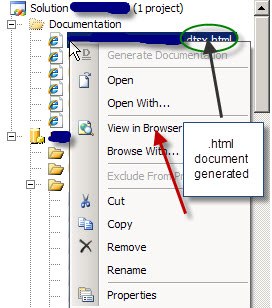
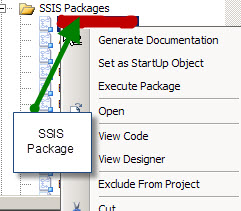 Click on the option, once the document is finished, a folder called
Documentation is created and in the folder one can see the package
documentation with a .html extension. The neat thing about the .html
option is that the documentation can be viewed in a browser. Right click
on the .html like shown in the image below and choose view in browser,
the documentation will open up in the browser.
Click on the option, once the document is finished, a folder called
Documentation is created and in the folder one can see the package
documentation with a .html extension. The neat thing about the .html
option is that the documentation can be viewed in a browser. Right click
on the .html like shown in the image below and choose view in browser,
the documentation will open up in the browser.